
What changed: The first time you sign in after March 2026, you will need to complete one additional step to verify your identity and link your login details to your existing Thomas account; after that, signing in works as normal:
- Single Sign-On (SSO) users complete this through an account linking screen.
- Password users reset their password to complete the process.
SSO users (Google, Microsoft, etc.)
If you use Single Sign-On, follow these steps the first time you sign in after the migration to our new login system. This only happens once.
Step 1 - Add to existing account
After signing in with your SSO provider, you will see a screen titled “Account already exists”. This means we have detected an existing Thomas account for your email address, and we want to link your SSO to it.
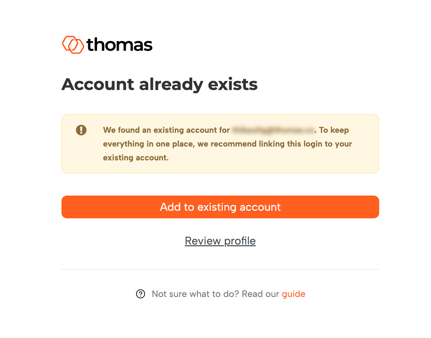
Click the 'Add to existing account' button. This is the expected behaviour and how we reconcile identities between the old and new systems.
Note: Do not create a new profile. Always choose 'Add to existing account', so your historical data, assessments and settings stay attached to your account.
Step 2 - Verify your email
Next, you will be taken to a “Check your email” page. We sent a verification link to the email address shown on the screen.
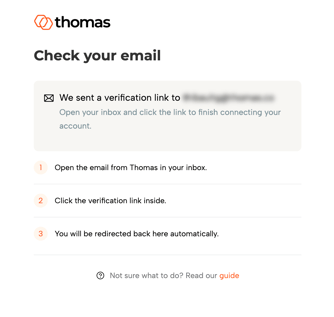
- Open the email from Thomas in your inbox.
- Click the verification link inside.
- You will be redirected back to Thomas automatically and signed in.
If you do not see the email after a minute or two, check your spam or junk folder. The link is single-use and time-limited; if it expires, sign in again to receive a new one.
Username & password users
If you sign in with an email address and password (not SSO), your existing password does not carry over to the new login system. The first time you log in after the migration, you need to reset your password.
How to reset your password
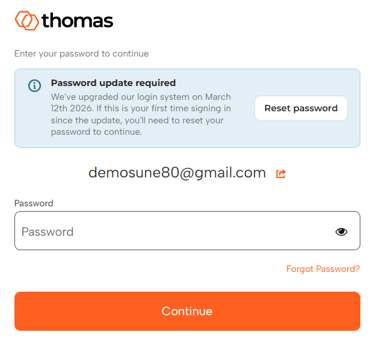
- On the sign-in page, click on 'Forgot Password?'
- Enter the email address you use to sign in to the Thomas platform.
- Check your inbox and open the 'Reset password' email. Click the link in the email: 'Link to reset credentials'.
- Create a new password and confirm it. Click 'Submit'.
- Sign in with your email and the new password.
After this one-time reset, your sign-in works exactly as before. You only need to do this once per account.
Troubleshooting
- I do not see the verification or reset email. Check your spam/junk folder and confirm the address shown on screen is the one you use. Allow up to a couple of minutes for delivery.
- The link in the email does not work. Links are single-use and expire after a short time. Start the sign-in flow again to get a new link.
- I accidentally created a new profile instead of linking. Contact the Thomas support team so we can merge the accounts and restore your historical data.
- I am an SSO user, but do not see the 'Account already exists' screen. That is fine - it only appears when we detect a matching existing account. You can continue signing in as normal.
Need more help?
If you still need help after following the steps above, you can contact Thomas support and mention that this is a first sign-in issue after the March 2026 migration. We will get things sorted for you as soon as possible.