---
title: Improve connection by sharing teams with all members
description: Private and shared teams
---
[Skip to content](https://knowledge.thomas.co/assess-connect/understanding-shared-teams-and-private-teams#main-content)
- [English](https://knowledge.thomas.co/assess-connect/understanding-shared-teams-and-private-teams)
- [Français](https://knowledge.thomas.co/fr/assess-connect/understanding-shared-teams-and-private-teams)
- [Nederlands](https://knowledge.thomas.co/nl/assess-connect/understanding-shared-teams-and-private-teams)
English
Show submenu for translations
[Raise a Ticket](https://knowledge.thomas.co/assess-connect/kb-tickets/new?hsLang=en)
[](https://knowledge.thomas.co/?hsLang=en)
- [Training](https://www.thomas.co/uk/solutions/training-accreditation)
- [Professional Services](https://www.thomas.co/uk/professional-services)
- [Integrations](https://www.thomas.co/uk/platform/integrations)
- [Digital Badging](https://www.thomas.co/digital-badging)
Open main navigation
Close main navigation
- [Training](https://www.thomas.co/uk/solutions/training-accreditation)
- [Professional Services](https://www.thomas.co/uk/professional-services)
- [Integrations](https://www.thomas.co/uk/platform/integrations)
- [Digital Badging](https://www.thomas.co/digital-badging)
- - [English](https://knowledge.thomas.co/assess-connect/understanding-shared-teams-and-private-teams)
- [Français](https://knowledge.thomas.co/fr/assess-connect/understanding-shared-teams-and-private-teams)
- [Nederlands](https://knowledge.thomas.co/nl/assess-connect/understanding-shared-teams-and-private-teams)
English
Show submenu for translations
- [Raise a Ticket](https://knowledge.thomas.co/assess-connect/kb-tickets/new)
- [Go to thomas.co](https://www.thomas.co/)
[Go to thomas.co](https://www.thomas.co/)
Search the Knowledge base
- There are no suggestions because the search field is empty.
1. [Assess & Connect](https://knowledge.thomas.co/assess-connect?hsLang=en)
2. [Manager Experience](https://knowledge.thomas.co/assess-connect/manager-experience?hsLang=en)
# Improve connection by sharing teams with all members
## When creating teams you can choose between two types of teams, depending on your purpose:
1. **Private teams:** Private teams are created for personal use and create a space where a person can explore insights privately, without or before sharing with others.
2. **Shared teams:** Shared teams create a visible team space on the platform where all team members can access and experience their team insights, creating a shared identity. Team members can view the group they belong to.
### **Shared teams vs private teams: the differences**
You will notice two labels that will help you understand your position in a team.

- **Your team role:** Your role determines what you can access in the team. Roles include either 'team owner' or 'team member'***.***
- **Status:** Status indicates whether the team is 'shared' or 'private'.
The table below explains the different insights available, depending on your role and team status:
| **Aspect** | **Shared teams** | **Private teams** |
| --- | --- | --- |
| **Visibility** | The team space is visible to the team owner and all added team members. | The team space is visible only to the team owner. |
| **Who can create** *(As per platform user permissions)* | Only Admins and Owners can create shared teams. | Viewers, Admins, and Owners can create private teams. |
| **Managing the team** | Only the team owner can manage and share the team. | |
| **Team name & members** | Visible to the team owner and all team members. | Visible only to the team owner. |
| **Team Behaviour profile and insights** | All team members and the team owner can view the team’s Behaviour profile and insights. | Only the team owner can view the team’s Behaviour profile and insights. |
| **Team Connection** | Only the team owner can request and view Team Connection insights. | |
| **Team Behaviour sessions** | Only the team owner can view and run team Behaviour sessions. | |
| **Team Member permissions** | Team members can view the team name, other team members’ details, and the team’s Behaviour profile and insights. | Team members cannot access the team or view any team details. |
| **Notifications** | Team members receive a notification when the team is shared with them. | Team members are not notified when added. |
### **Behaviour insight visibility**
In a shared team, all team members' profiles are included in the Team Behaviour visualisation and insights. However, only team members who have shared their Behaviour insights will be directly identifiable.
Team members who keep their results private will still be included in the overall team profile, but their names will only be visible on the team profile visualisation once they share their Behaviour insights.
Within a private team, team members need to share their Behaviour insights before it is included in the team profile.
### **Creating and sharing a team**
1. Navigate to "Teams" in the platform.
2. First-time users:If teams have already been shared with you, they will appear in the table. If no teams have been shared with you yet, you will only see the option to create a team.
3. To create a new team, select the 'Create team' button and add the colleagues you want to add to the team. This creates a private team by default.
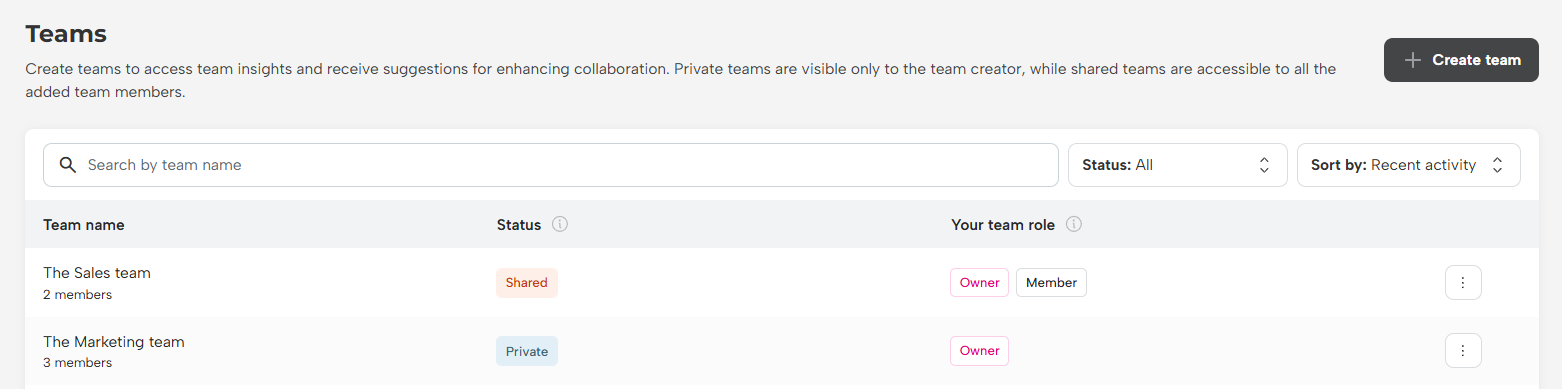
4. To convert the team into a shared team, click the ellipsis next to the team name in the team table, or open the team and select 'Share with members'on the right-hand side.
5. Once the team is shared, team members receive an email notification and can view the shared team.
- [Employee Experience](https://knowledge.thomas.co/assess-connect/employee-experience?hsLang=en)
- [Expert Insight](https://knowledge.thomas.co/assess-connect/expert-insight?hsLang=en)
- [HR Experience](https://knowledge.thomas.co/assess-connect/hr-experience?hsLang=en)
- [Manager Experience](https://knowledge.thomas.co/assess-connect/manager-experience?hsLang=en)
- [Settings](https://knowledge.thomas.co/assess-connect/settings?hsLang=en)
- [Thom AI](https://knowledge.thomas.co/assess-connect/thom-ai?hsLang=en)
- [Training](https://www.thomas.co/uk/solutions/training-accreditation)
- [Professional Services](https://www.thomas.co/uk/professional-services)
- [Integrations](https://www.thomas.co/uk/platform/integrations)
- [Digital Badging](https://www.thomas.co/digital-badging)
[](https://thomas.co)
[mailto:email@email.com](mailto:email@email.com)
Copyright © 2025, Thomas